> ## Documentation Index
> Fetch the complete documentation index at: https://connectifyai-39.mintlify.site/llms.txt
> Use this file to discover all available pages before exploring further.

# Quickstart

> Learn how to use ConnectifyAI.

## Create an account

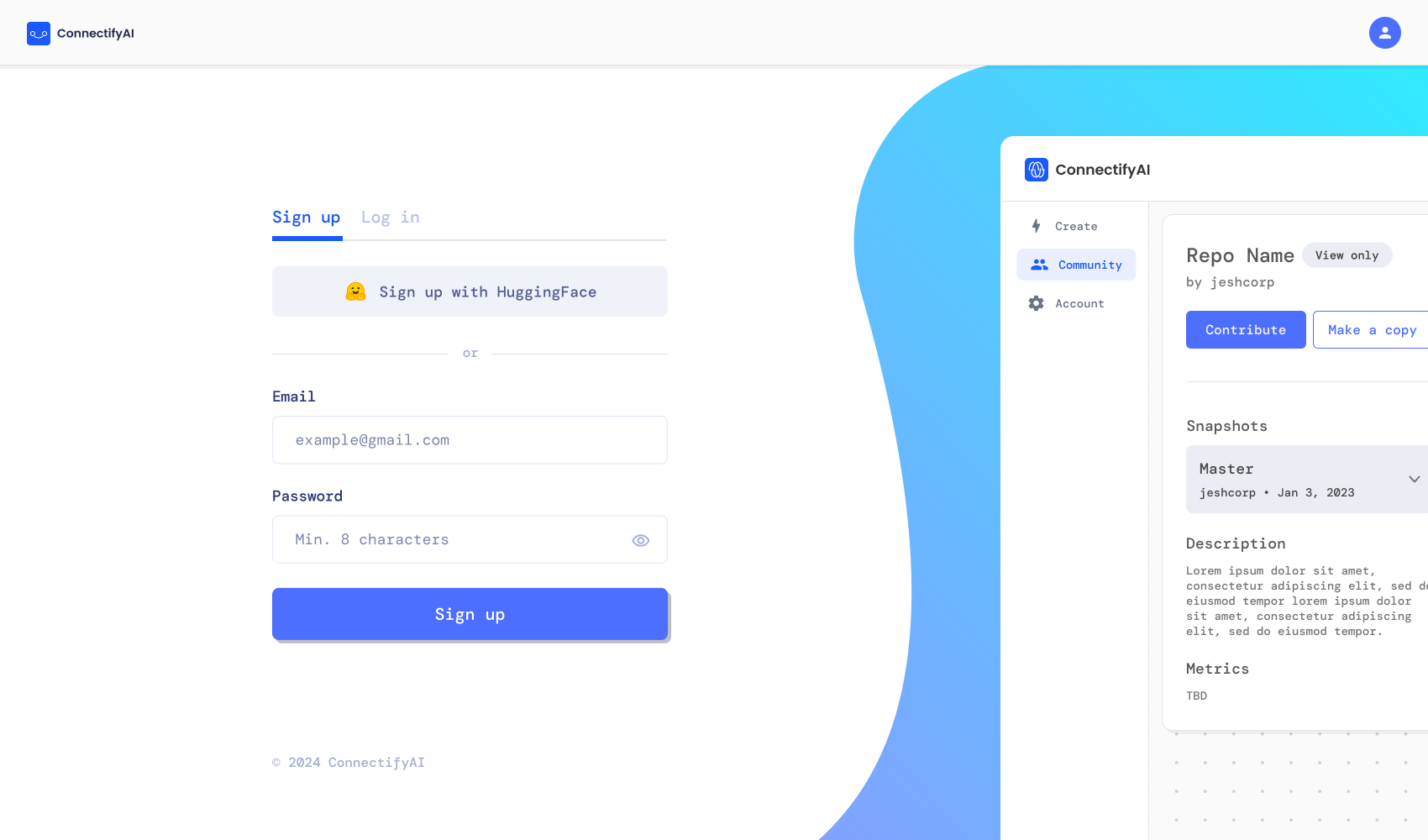
First step is to visit the website and create an account.
<img className="block dark:hidden" src="https://mintcdn.com/connectifyai-39/FIPf6TGp2g0fkLmt/images/Sign%20In.png?fit=max&auto=format&n=FIPf6TGp2g0fkLmt&q=85&s=5d544e1695e75afcc347503e7c719ee6" alt="Sign In" width="1700" height="1000" data-path="images/Sign In.png" />

<img className="hidden dark:block" src="https://mintcdn.com/connectifyai-39/FIPf6TGp2g0fkLmt/images/Sign%20In.png?fit=max&auto=format&n=FIPf6TGp2g0fkLmt&q=85&s=5d544e1695e75afcc347503e7c719ee6" alt="Sign In" width="1700" height="1000" data-path="images/Sign In.png" />

### Create or load a graph

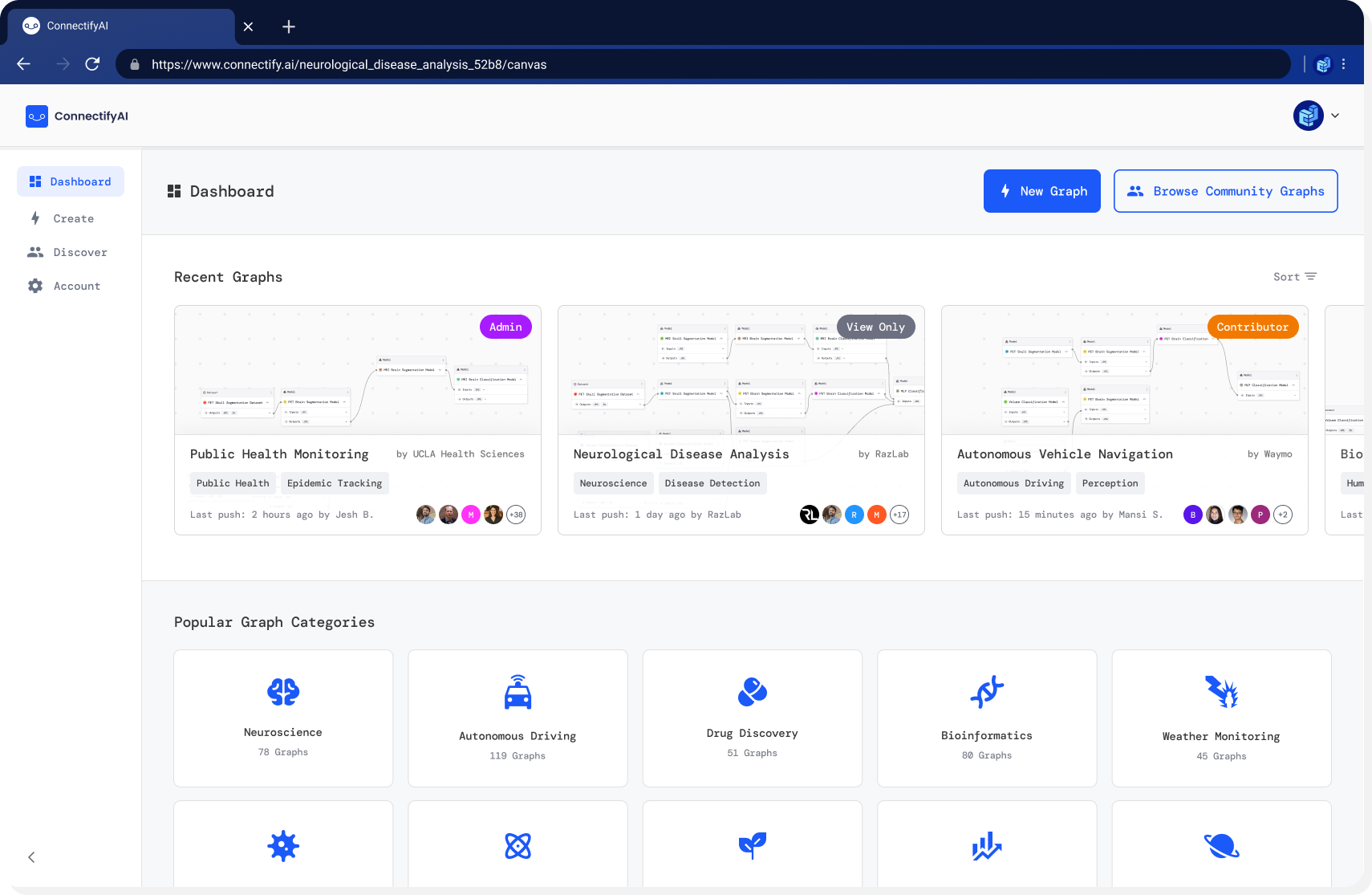
After creating an account you will be able to either create a new graph or load
a community graph.
<img className="block dark:hidden" src="https://mintcdn.com/connectifyai-39/FIPf6TGp2g0fkLmt/images/My%20Projects.png?fit=max&auto=format&n=FIPf6TGp2g0fkLmt&q=85&s=bde2100bd49205ffbd0d205d03ab1130" alt="Projects" width="1710" height="1115" data-path="images/My Projects.png" />

<img className="hidden dark:block" src="https://mintcdn.com/connectifyai-39/FIPf6TGp2g0fkLmt/images/My%20Projects.png?fit=max&auto=format&n=FIPf6TGp2g0fkLmt&q=85&s=bde2100bd49205ffbd0d205d03ab1130" alt="Projects" width="1710" height="1115" data-path="images/My Projects.png" />

### Adding to a graph

Once you have clicked on a graph it will be displayed along with all of its previous components.

<img className="block dark:hidden" src="https://mintlify.s3.us-west-1.amazonaws.com/connectifyai-39/images/View%20Mode.png" alt="View Mode" />

<img className="hidden dark:block" src="https://mintlify.s3.us-west-1.amazonaws.com/connectifyai-39/images/View%20Mode.png" alt="View Mode" />

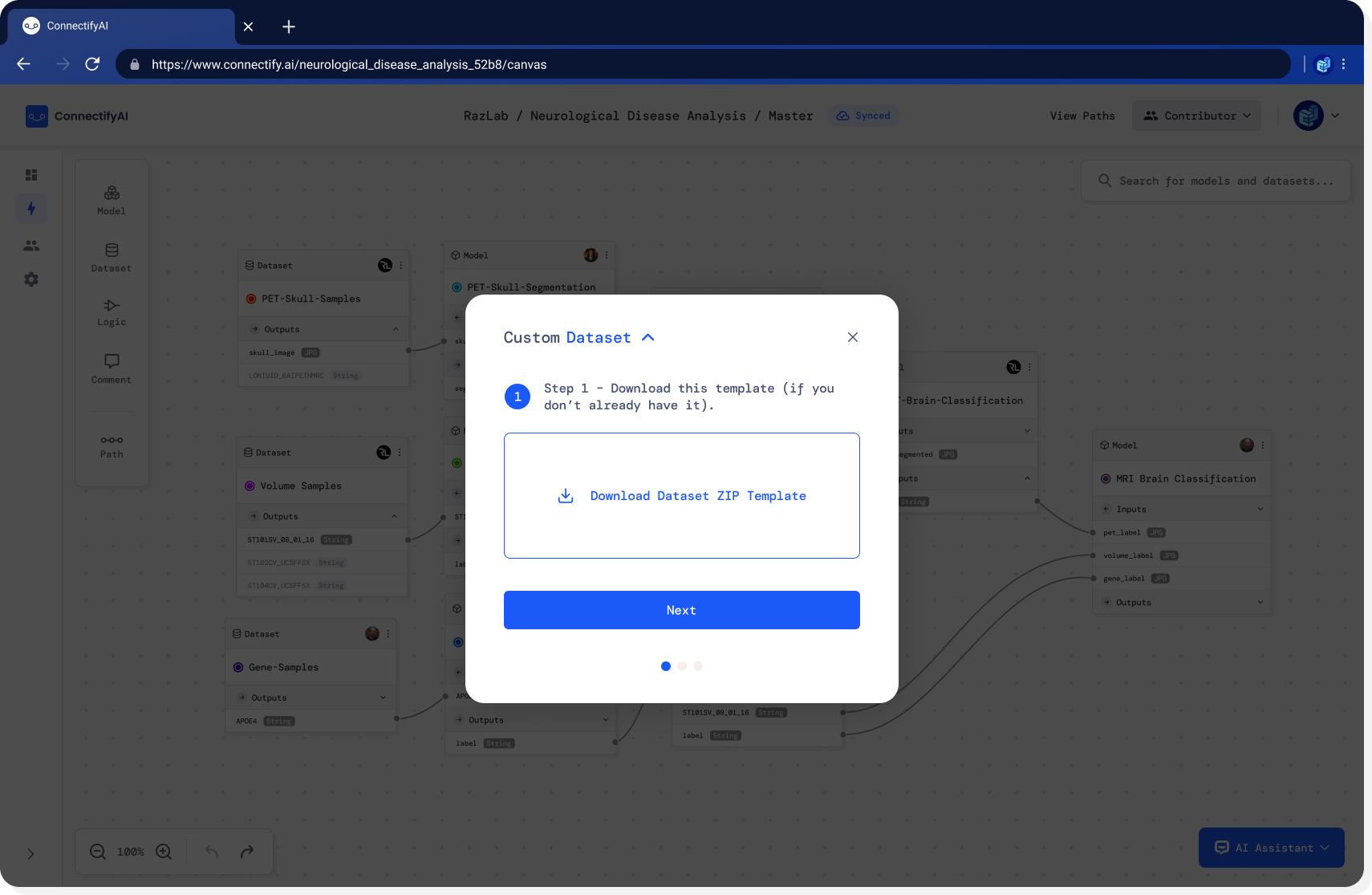
Now you will be able to make changes to the graph
by adding new models/datasets. In order to add new models/datasets you will first
need to download a ZIP template and modify it.
<img className="block dark:hidden" src="https://mintcdn.com/connectifyai-39/FIPf6TGp2g0fkLmt/images/Custom%20Dataset%20Step%201.png?fit=max&auto=format&n=FIPf6TGp2g0fkLmt&q=85&s=a0940b4b7fc87e1886bd8eddaafcbdee" alt="Custom Dataset" width="1710" height="1115" data-path="images/Custom Dataset Step 1.png" />

<img className="hidden dark:block" src="https://mintcdn.com/connectifyai-39/FIPf6TGp2g0fkLmt/images/Custom%20Dataset%20Step%201.png?fit=max&auto=format&n=FIPf6TGp2g0fkLmt&q=85&s=a0940b4b7fc87e1886bd8eddaafcbdee" alt="Custom Dataset" width="1710" height="1115" data-path="images/Custom Dataset Step 1.png" />

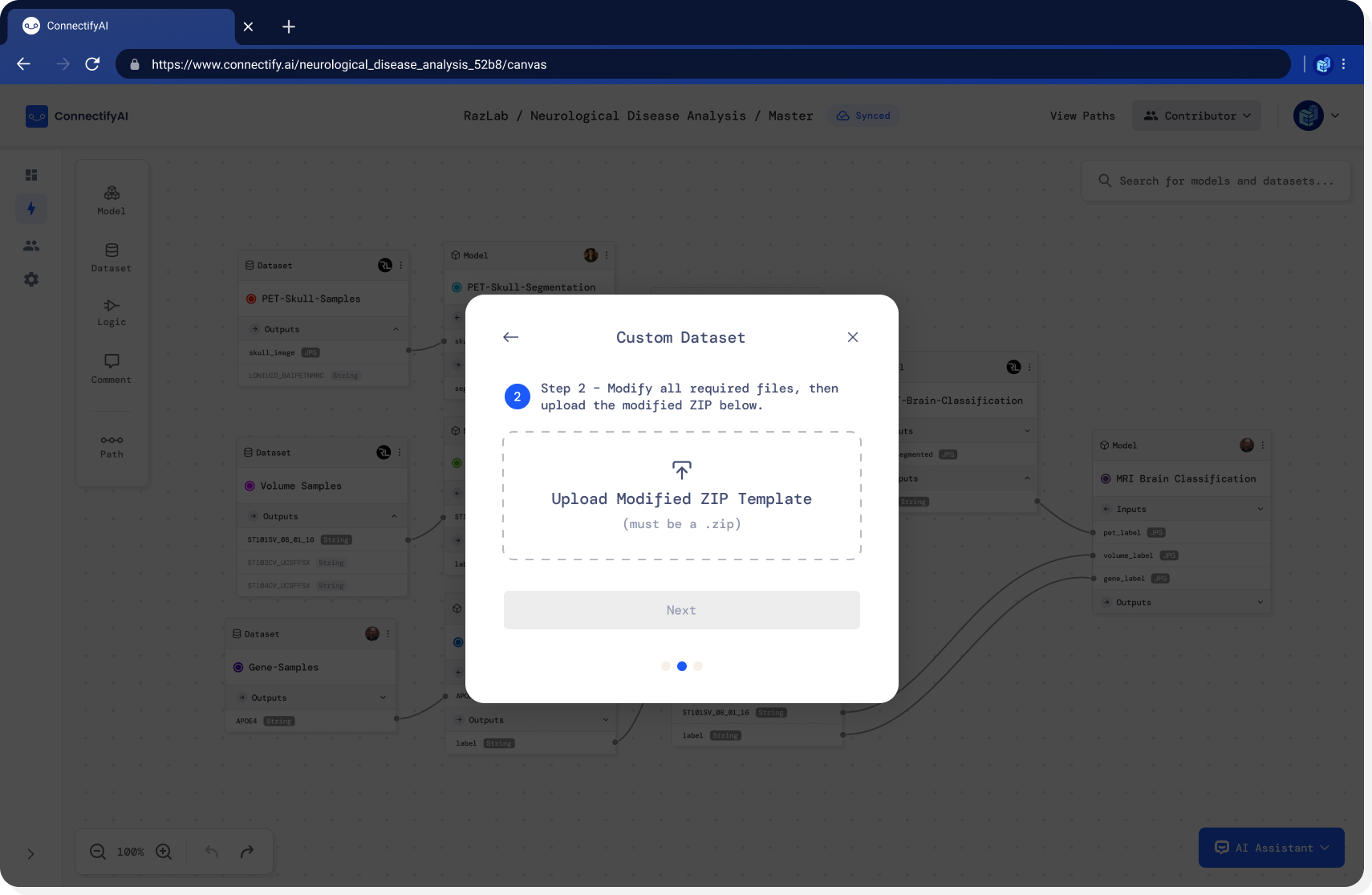
After you have made changes to the template you can upload it.
<img className="block dark:hidden" src="https://mintcdn.com/connectifyai-39/FIPf6TGp2g0fkLmt/images/Custom%20Dataset%20Step%2011.png?fit=max&auto=format&n=FIPf6TGp2g0fkLmt&q=85&s=3ddf9764a82736674fb7f67c75517e87" alt="Custom Dataset" width="1710" height="1115" data-path="images/Custom Dataset Step 11.png" />

<img className="hidden dark:block" src="https://mintcdn.com/connectifyai-39/FIPf6TGp2g0fkLmt/images/Custom%20Dataset%20Step%2011.png?fit=max&auto=format&n=FIPf6TGp2g0fkLmt&q=85&s=3ddf9764a82736674fb7f67c75517e87" alt="Custom Dataset" width="1710" height="1115" data-path="images/Custom Dataset Step 11.png" />

Then you will have to fill in basic information about the model/dataset.
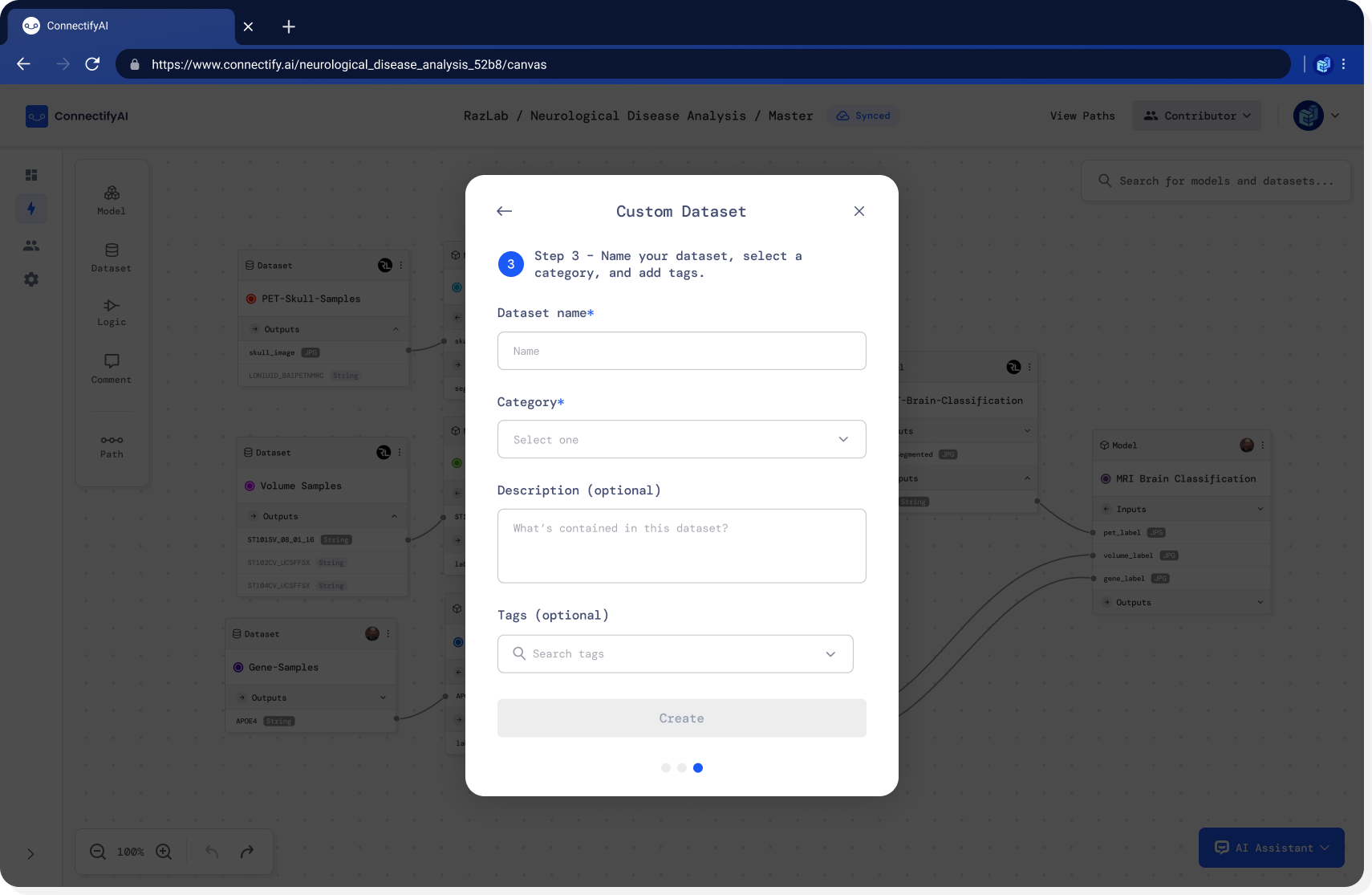
<img className="block dark:hidden" src="https://mintcdn.com/connectifyai-39/FIPf6TGp2g0fkLmt/images/Custom%20Dataset%20Step%204.png?fit=max&auto=format&n=FIPf6TGp2g0fkLmt&q=85&s=2a0c7d542aee4836f670d6ad9e2a7a9b" alt="Custom Dataset" width="1710" height="1115" data-path="images/Custom Dataset Step 4.png" />

<img className="hidden dark:block" src="https://mintcdn.com/connectifyai-39/FIPf6TGp2g0fkLmt/images/Custom%20Dataset%20Step%204.png?fit=max&auto=format&n=FIPf6TGp2g0fkLmt&q=85&s=2a0c7d542aee4836f670d6ad9e2a7a9b" alt="Custom Dataset" width="1710" height="1115" data-path="images/Custom Dataset Step 4.png" />

Instead of uploading a model/dataset you can also choose a pre-existing one. If you choose to do so you will be able to search for models and add it to the graph.
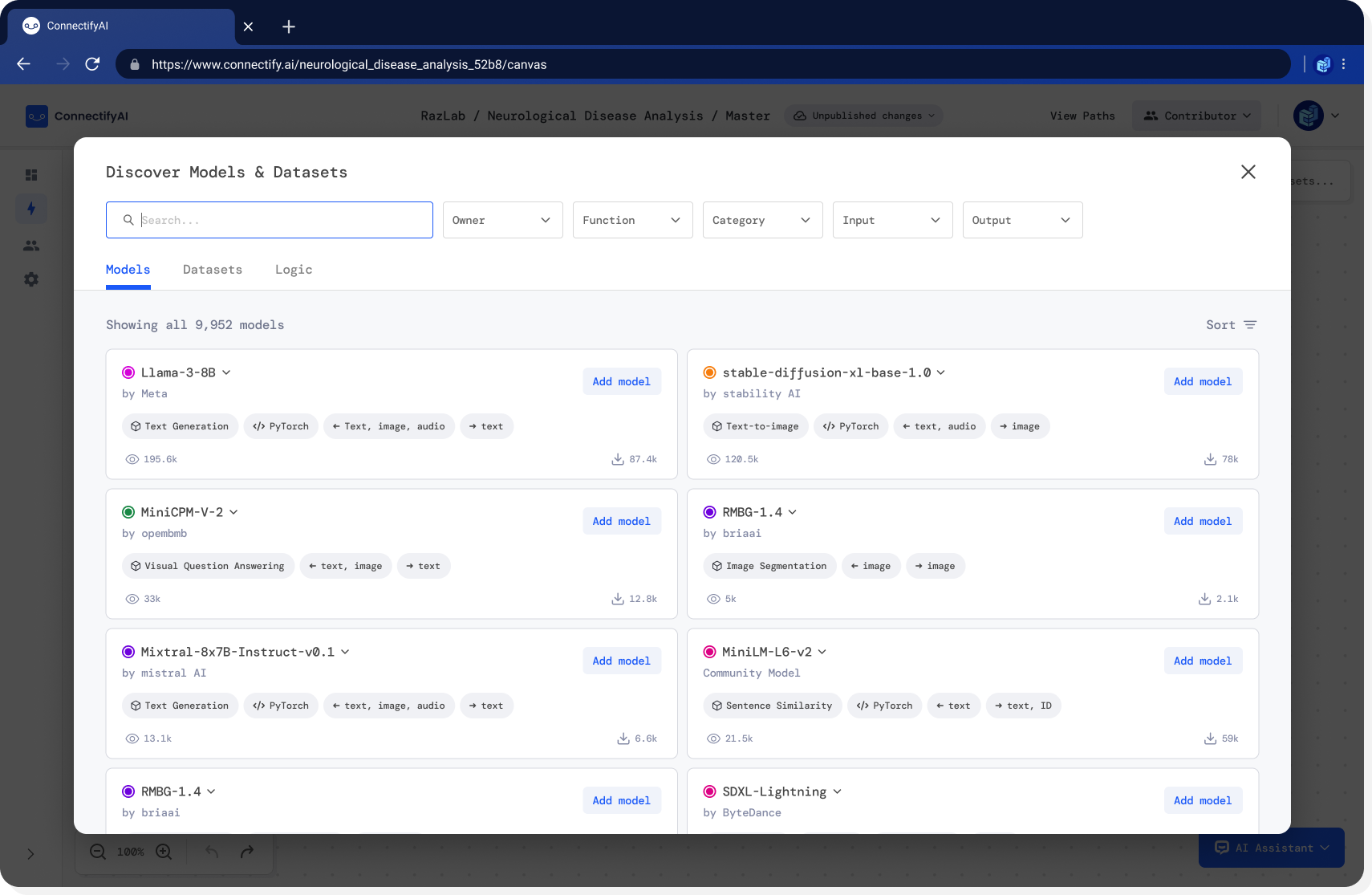
<img className="block dark:hidden" src="https://mintcdn.com/connectifyai-39/FIPf6TGp2g0fkLmt/images/Enter%20model%20search.png?fit=max&auto=format&n=FIPf6TGp2g0fkLmt&q=85&s=a08afa9df5ccf9c8de58a81c68014424" alt="model search" width="1710" height="1115" data-path="images/Enter model search.png" />

<img className="hidden dark:block" src="https://mintcdn.com/connectifyai-39/FIPf6TGp2g0fkLmt/images/Enter%20model%20search.png?fit=max&auto=format&n=FIPf6TGp2g0fkLmt&q=85&s=a08afa9df5ccf9c8de58a81c68014424" alt="model search" width="1710" height="1115" data-path="images/Enter model search.png" />

Once you have made all the changes you want
you should commit these changes to save it for later.
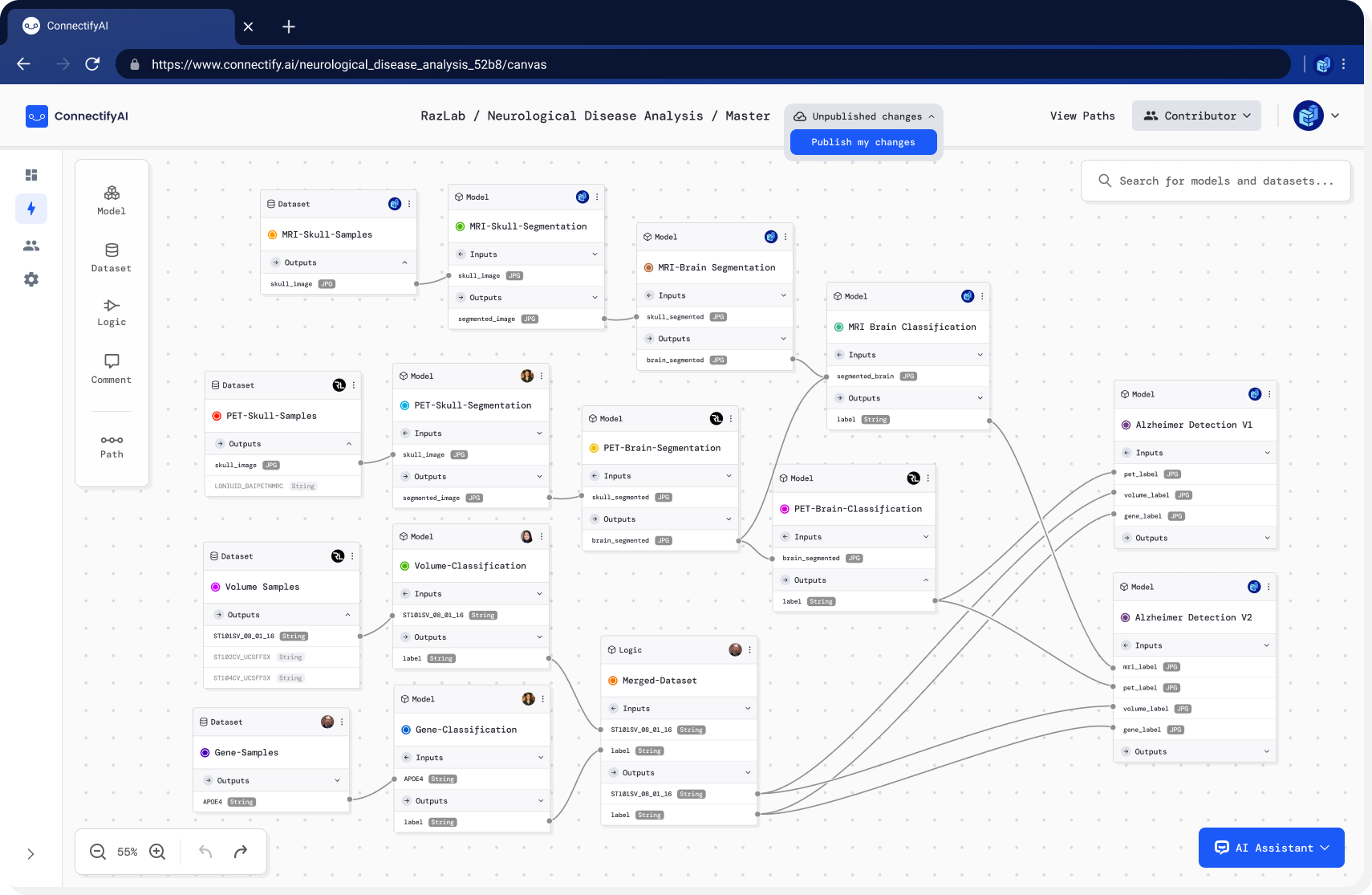
<img className="block dark:hidden" src="https://mintcdn.com/connectifyai-39/FIPf6TGp2g0fkLmt/images/Publish%20Changes.png?fit=max&auto=format&n=FIPf6TGp2g0fkLmt&q=85&s=003fe23b458a1e25e184e19ca7534171" alt="Publish Changes" width="1710" height="1115" data-path="images/Publish Changes.png" />

<img className="hidden dark:block" src="https://mintcdn.com/connectifyai-39/FIPf6TGp2g0fkLmt/images/Publish%20Changes.png?fit=max&auto=format&n=FIPf6TGp2g0fkLmt&q=85&s=003fe23b458a1e25e184e19ca7534171" alt="Publish Changes" width="1710" height="1115" data-path="images/Publish Changes.png" />

When publishing changes you will have to write a commit title. Optionally you can also write a description of what the changes were.

<img className="block dark:hidden" src="https://mintcdn.com/connectifyai-39/FIPf6TGp2g0fkLmt/images/Publish%20Changes%20(1).png?fit=max&auto=format&n=FIPf6TGp2g0fkLmt&q=85&s=05ffa8c982f4ee29b9d9d69fd0ef7cae" alt="Publish Changes" width="1710" height="1115" data-path="images/Publish Changes (1).png" />

<img className="hidden dark:block" src="https://mintcdn.com/connectifyai-39/FIPf6TGp2g0fkLmt/images/Publish%20Changes%20(1).png?fit=max&auto=format&n=FIPf6TGp2g0fkLmt&q=85&s=05ffa8c982f4ee29b9d9d69fd0ef7cae" alt="Publish Changes" width="1710" height="1115" data-path="images/Publish Changes (1).png" />

### Running a path

In order to run a path you can select multiple models and datasets and save the path.
If you do not know what path you want to run but know where you want to start and end the path you can
select two models/datasets and use our AI tool to find an optimal path. This AI tool uses metrics from previous
experiments to find the best path for you.
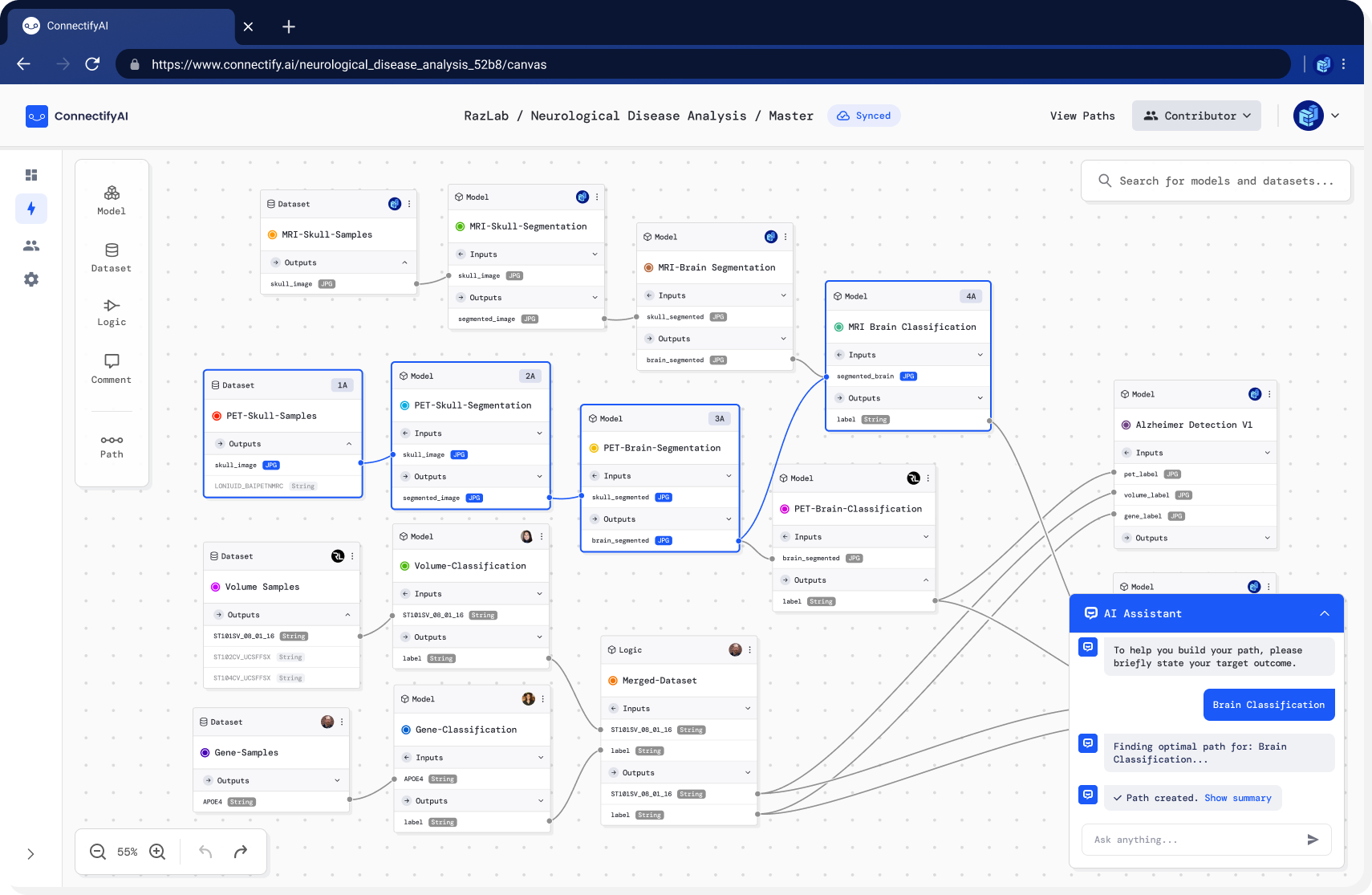
<img className="block dark:hidden" src="https://mintcdn.com/connectifyai-39/FIPf6TGp2g0fkLmt/images/Path%20Summary.png?fit=max&auto=format&n=FIPf6TGp2g0fkLmt&q=85&s=53bfab1a9120f40340b55c555dfeb626" alt="Path Summary" width="1710" height="1115" data-path="images/Path Summary.png" />

<img className="hidden dark:block" src="https://mintcdn.com/connectifyai-39/FIPf6TGp2g0fkLmt/images/Path%20Summary.png?fit=max&auto=format&n=FIPf6TGp2g0fkLmt&q=85&s=53bfab1a9120f40340b55c555dfeb626" alt="Path Summary" width="1710" height="1115" data-path="images/Path Summary.png" />

You can also see previous paths which have been ran and see the metrics in order to choose a path.

<img className="block dark:hidden" src="https://mintcdn.com/connectifyai-39/FIPf6TGp2g0fkLmt/images/Path%20Summary%20(2).png?fit=max&auto=format&n=FIPf6TGp2g0fkLmt&q=85&s=c081a5717c6a8756e6342cf663a6d17d" alt="Path Summary" width="1710" height="1115" data-path="images/Path Summary (2).png" />

<img className="hidden dark:block" src="https://mintcdn.com/connectifyai-39/FIPf6TGp2g0fkLmt/images/Path%20Summary%20(2).png?fit=max&auto=format&n=FIPf6TGp2g0fkLmt&q=85&s=c081a5717c6a8756e6342cf663a6d17d" alt="Path Summary" width="1710" height="1115" data-path="images/Path Summary (2).png" />
